How it Works
There are two parts to “how it works:”
The Laboratory. This is the server setup that isolates and runs the experiments.
Experiments. These are semi-public, semi-independent deployments of a version of a web site or app.
The Laboratory
The laboratory environment:
Should be isolated from other environments (e.g. production)
Should be easily rebuildable from scratch
Should have access to test versions of all services you may need
Should be accessible by developers via SSH
Isolated Laboratory
Because this is a test environment, things will go wrong. You do not want an accident to harm another environment. This is also handy for security reasons. Since the developers will have SSH access to the test server, you want to limit the amount of damage a hacker could do if you are compromised.
Easily Rebuildable
If something goes wrong, make it easy to scrap everything and rebuild from scratch. While rebuilding the environment might be inconvenient, it is easier than debugging what changed in the developer playground.
Access to test versions of services
If your web stack requires a database, you will need to have at least one database server available. Any other services, such as low-level caches or search indexes, need test versions as well.
Accessible by developers via SSH
The primary reason is that it is via SSH that the commands will communicate to set up each test instance. The other is that there are occasions when a developer having access to a production-like environment is advantageous.
Example setup
This setup shows an example setup created through Setting up the laboratory.
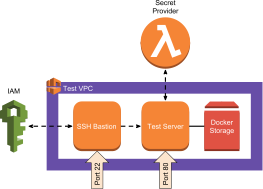
VPC
SSH Bastion
IAM for public key and access management
Secret Provider
Test Server
Wildcard DNS Entry
With the exception of the wildcard DNS entry, the rest can be set up and customized in AWS via Cloud Formation templates.
VPC. The Virtual Private Cloud is a logically isolated section of the AWS Cloud. This is the isolation part of our environment. We use a cloud formation template from Widdix to create this.
SSH Bastion. A secure shell bastion is an entrance to monitor and manage access to servers that don’t have SSH publicly enabled. We use an SSH bastion template from Widdix to create this.
IAM public key management. Widdix has a great article about managing SSH access through IAM. Basically you add the user’s public SSH key to their IAM profile, and the SSH bastion checks it when they attempt to log in.
Secret Provider. This is an AWS Lambda function that generates and stores secrets for Cloud Formation templates. It is created using the Binxio cfn-secret-provider template. This service is used to generate public and private RSA keys for the default ec2-user on the Test Server. This allows you to create a machine user on GitHub to check out code repos.
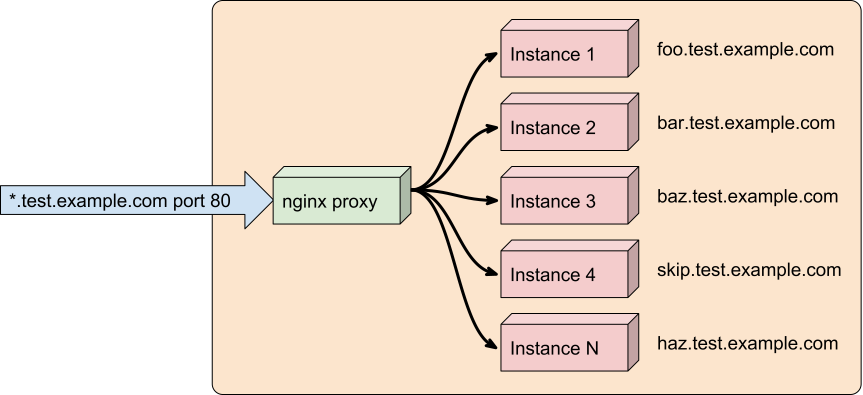
Test Server. The test server is an EC2 instance running Docker and nginx proxy. Nginx proxy is an automated reverse proxy for Docker containers. It will route any connection on port 80 to the appropriate running Docker container with a VIRTUAL_HOST environment variable set.
An EBS volume is connected, but not mounted, for Docker to store the containers (via the devicemapper driver).
We created a test server template to create this server.
Wildcard DNS entry. Since we want the experiments available via the internet, we need a simple dynamic way to manage the DNS. A wildcard DNS entry will route traffic for any subdomain to a specific address. So, if we say “any address in the test.example.com subdomain routes to the test server,” then the test server can decide how to route the traffic.
When the Docker container for an experiment runs, it can tell nginx proxy to route all traffic for foo.test.example.com to it.
Experiments
An experiment is a version (branch) of your code running in a Docker container on the test server. Each experiment gets its own DNS name, based on the VIRTUAL_HOST environment variable set on the Docker container.
Creating an experiment
Creating an experiment is based on the idea of a mini-deployment using a Docker container. Each experiment has three parts: the application name, the branch name and the instance name. The application name is the name of the project or application. This provides a namespace for the instance names. If you are testing multiple applications, you might have branches with the same name across the different projects.

The steps LabTest goes through when creating an experiment
Typically the instance name is the same as the branch name, but they don’t have to be. You can have two experiments using the same branch, but with different instance names.
Create experiment space. The step creates a space to store files it might need. The space is at /testing/<app name>/<instance name>.
Trigger build. The result of this step is a compiled Docker image. Test Lab has a built-in process, or you can use your own existing process that generates the image.
Create container from image. There are two parts to this: creating an environment file and creating the container. The environment file is automatically generated from the values in environment, plus a few extras:
VIRTUAL_HOSTis created from the host_name_pattern and test_domain.APP_NAMEis app_name.INSTANCE_NAMEis name of the test instance.BRANCH_NAMEis name of the branch.
The container is created and named using the docker create command. This allows us to start, stop and restart the container as an Systemd service.
Create backing services. Coming soon! This step will set up any backing services you need, such as databases and caches.
Create OS Service. This step creates Systemd services to start and stop the containers. It makes sure they are started in case of a reboot of the machine as well.